|
1.
|
|
3.
|
|
1.
|
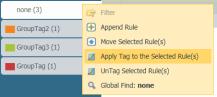
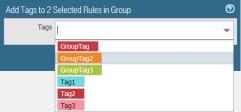
View Rulebase as Groupsto view the group tags your rules are assigned to.
|
|
3.
|
|
1.
|
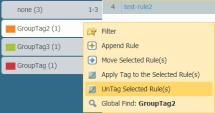
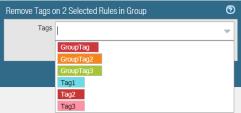
View Rulebase as Groupsto view the group tags your rules are assigned to.
|
|
3.
|
|
4.
|
When you View Rulebase as Groups, select one or more rules in a group tag, hover over the rule number and select Move Selected Rule(s) in the drop-down. Do not select any rules if you want to move all rules in the selected group tag.
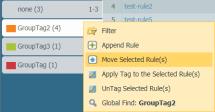
Select a group tag from the drop-down in the move rule window and select whether you want to Move Before or Move After the tag selected in the drop-down.
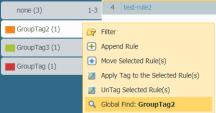
When you View Rulebase as Groups, hover over the group tag and from the drop-down select Global Find.
Administrative roles can export the object configuration table in PDF/CSV format and can apply filters to customize the table output to include only the columns you need. Only the columns that are visible in the Export dialogue exported. See Export Configuration Table Data.