|
Add a new policy rule or select a rule on which to base a new rule and Clone Rule. The copied rule, “rulen” is inserted below the selected rule, where n is the next available integer that makes the rule name unique. For details on cloning, see Move or Clone a Policy Rule.
|
|||||||||
|
Override and Revert actions pertain only to the default rules displayed at the bottom of the Security rulebase. These predefined rules—allow all intrazone traffic and deny all interzone traffic—instruct the firewall about how to handle traffic that does not match any other rule in the rulebase. Because they are part of the predefined configuration, you must Override them to edit select policy settings. If you are using Panorama, you can also Override the default rules and then push them to firewalls in a Device Group or Shared context. You can also Revert the default rules, which restores the predefined settings or the settings pushed from Panorama. For details, see Overriding or Reverting a Security Policy Rule.
|
|||||||||
|
Rules are evaluated from the top down and as they are enumerated on the Policies page. To change the order in which the rules are evaluated against network traffic, select a rule and Move Up, Move Down, Move Top, Move Bottom, or Move to a different rulebase or device group. For details, see Move or Clone a Policy Rule.
|
|||||||||
|
Select and Delete an existing rule.
|
|||||||||
|
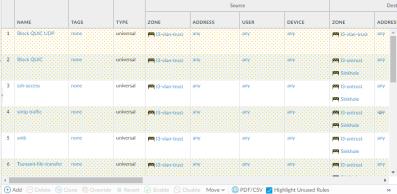
To identify rules that have not been used since the last time the firewall was restarted, Highlight Unused Rules. Unused rules have a dotted background. You can then decide whether to Disable a rule or Delete it. Rules not currently in use are displayed with a dotted yellow background. When policy rule hit count is enabled, the Hit Count data is used to determine whether a rule is unused.
 |
|||||||||
|
The Hit Count tracks the total traffic hits for the policy rule. The total traffic hit count persists through reboot, upgrade, and data plane restart.
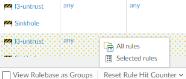
Alternatively, Reset Rule Hit Counter (bottom menu). To clear the hit count statistics, select All Rules or select specific rules and reset hit count statistics only for the Selected rules.
 View the First Hit to identify when the Security policy was first hit. The date is formated as date hh:mm:ss year. You cannot reset this value.
View the Last Hit to identify when the Security policy was last used. The date is formated as date hh:mm:ss year. You cannot reset this value.
|
|||||||||
|
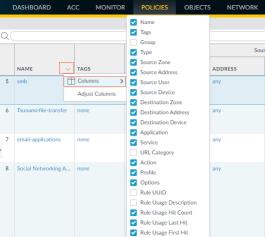
Show or hide the columns that display under Policies. Select the column name to toggle the display.
 |
|||||||||
|
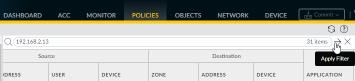
To apply a filter to the list, select from the Filter Rules drop-down. To define a filter, choose Filter from the item drop-down.
|
|||||||||
|
To view the network sessions that were logged as matches against the policy, choose Log Viewer from the rule name drop-down.
|
|||||||||
|
To display the current value, choose Value from the entry drop-down. You can also edit, filter, or remove items directly from the column menu. For example, to view addresses included in an address group, hover over the object in the Address column and select Value from the drop-down. This allows you to quickly view the members and the corresponding IP addresses for the address group without having to navigate to the Object tab.
|
|||||||||
 |
|||||||||
|
Preview rules (Panorama only)
|
Preview Rules to view a list of the rules before you push the rules to the managed firewalls. Within each rulebase, the hierarchy of rules is visually demarcated for each device group (and managed firewall) to make it easier to scan through a large numbers of rules.
|
||||||||
|
Administrative roles with a minimum of read-only access can export the policy rulebase as PDF/CSV. You can apply filters to create more specific table configuration outputs as needed, such as for audits. Only visible columns in the web interface will be exported. See Configuration Table Export.
|
|||||||||
|
Highlight any policy rule with no traffic matches in the Rule Usage column.
|
|||||||||
|
Manage tag groups when you have the View Rulebase as Groups box checked. You can perform the following actions:
|
|||||||||
|
View Rulebase as Groups to view the policy rulebase using the tag used in Group Rules by Tag . The visible policy rules are those which belong to the selected tag group.
|
|||||||||
